Connect your agent
Indie Marketer runs a local MCP server inside the app. Your agent talks to it on your Mac; nothing goes through our servers.
Any agent
Indie Marketer works with any agent that can run a local MCP server over stdio. Add a server named indie-marketer whose command is the path below, with no arguments, then start a new session and ask the agent to call doctor.
/Applications/Indie Marketer.app/Contents/MacOS/indiemarketer-mcpLet the app do it
Open Indie Marketer and go to Settings > Agents. The app finds the agents installed on your Mac and shows the exact command or config for each. Press Connect and it writes the config (keeping a backup of your old file) and installs its skills into the agent's skills folder. It only does this after you press the button.
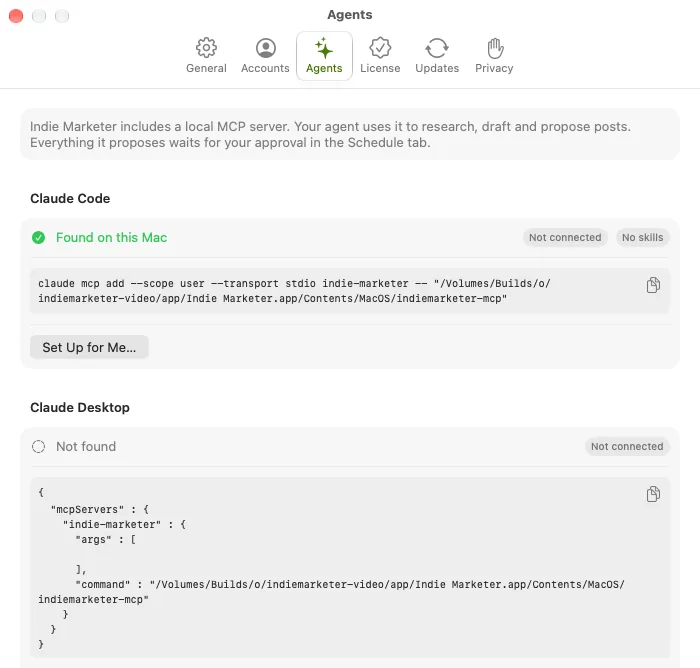
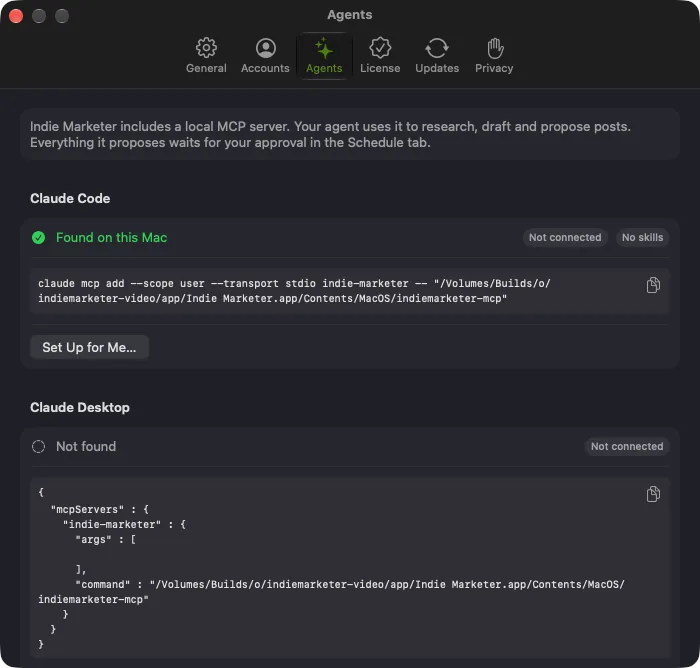
The sections below are ready-made examples for a few common agents.
Claude Code
Run this once in a terminal:
claude mcp add --scope user --transport stdio indie-marketer -- "/Applications/Indie Marketer.app/Contents/MacOS/indiemarketer-mcp"Start a new Claude Code session and run /mcp: indie-marketer should be listed as connected. Skills go into ~/.claude/skills/ when you press Connect in the app.
Codex
Run:
codex mcp add indie-marketer -- "/Applications/Indie Marketer.app/Contents/MacOS/indiemarketer-mcp"Or add this to ~/.codex/config.toml:
[mcp_servers.indie-marketer]
command = "/Applications/Indie Marketer.app/Contents/MacOS/indiemarketer-mcp"
args = []
Cursor
Add this to ~/.cursor/mcp.json (merge it with what is already there), then open Cursor's MCP settings and check that indie-marketer is on:
{
  "mcpServers": {
    "indie-marketer": {
      "command": "/Applications/Indie Marketer.app/Contents/MacOS/indiemarketer-mcp",
      "args": []
    }
  }
}
Claude Desktop
Add this to ~/Library/Application Support/Claude/claude_desktop_config.json and restart Claude Desktop:
{
  "mcpServers": {
    "indie-marketer": {
      "command": "/Applications/Indie Marketer.app/Contents/MacOS/indiemarketer-mcp",
      "args": []
    }
  }
}
Claude Desktop has no skills folder; the guides reach it through the MCP server itself.
First steps
- Ask your agent: “Use Indie Marketer. Run doctor and tell me what's missing.” It checks the app, the browser, your accounts and your license, and says what to do next.
- Ask it to connect an account, for example your X account. The app opens a sign-in window for that account. Sign in there yourself; the window closes when you are done.
- Ask for a few drafts. They appear in the app under Needs approval.
- Approve one. It is published at its time, and the result shows in the calendar and the log.
Networks and what they can do
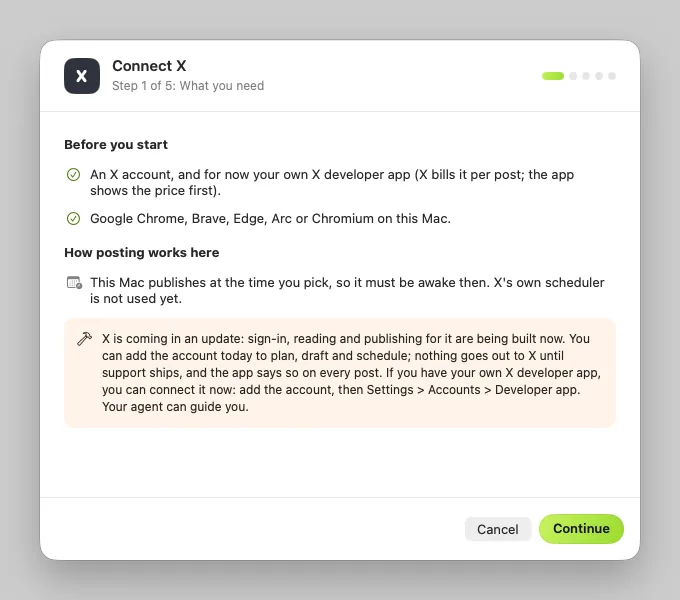
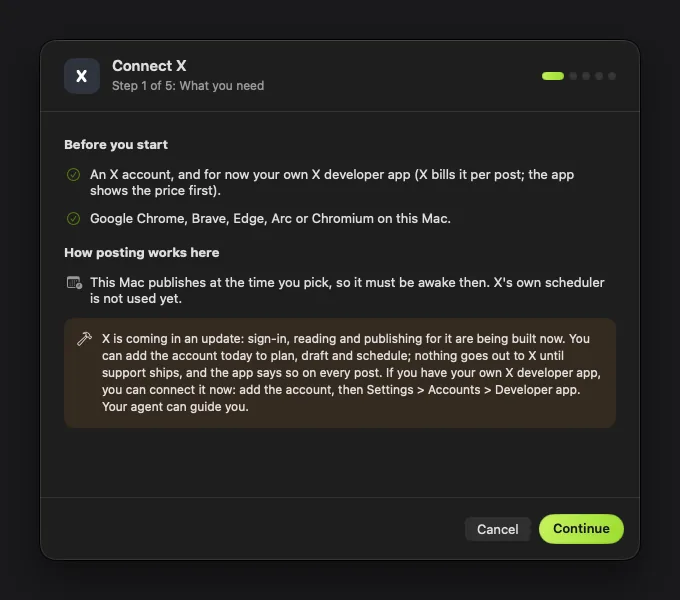
Each network has a short guided connection in the app: what you need, the sign-in window, what Stable and Experimental mean for it, and what the app will and won't do there.
| Network | Publishes | Schedules through | Status at launch |
|---|---|---|---|
| X | Posts and threads | X's own scheduler | Experimental |
| Posts and reels | Meta Business Suite for professional accounts, else the app | Experimental | |
| Threads | Posts | Threads' own scheduler | Experimental |
| TikTok | Videos | TikTok Studio, up to 10 days ahead | In a later update |
| Pages, profiles and groups | Business Suite for Pages, else the app | In a later update |
If something is off
- The agent can't find the server: open Indie Marketer once, then start a new agent session. The server starts the app when it is not running.
- “Needs you” on an account: the network asked for a check (a captcha, a code, a warning). The app stopped that account. Open the account in Settings > Accounts, deal with the check in its window, and follow what the app says.
- Anything else: ask your agent to send feedback. It sends a short report with redacted diagnostics (never your posts, handles or passwords), or email team@indiemarketer.app.